
If you hold positions in more than one entity, Bizfile lets you switch between them without logging out. Click your entity name in the top menu bar, select Switch profile, and pick the entity you want from the My profile page.
That is the mechanic. The reason it exists is more interesting than the clicks. Bizfile deliberately allows you to be authorised for one entity at a time in any given moment, so that every transaction you submit is unambiguously attached to a single company. It is a guardrail, not a convenience feature.
If you are a director of four companies, a corporate secretary filing for forty clients, or a finance manager covering a group, the profile you are sitting in when you press submit determines whose register changes. Get it wrong and you have made a false filing against a company you may have no business touching.
Who the switch profile feature is for
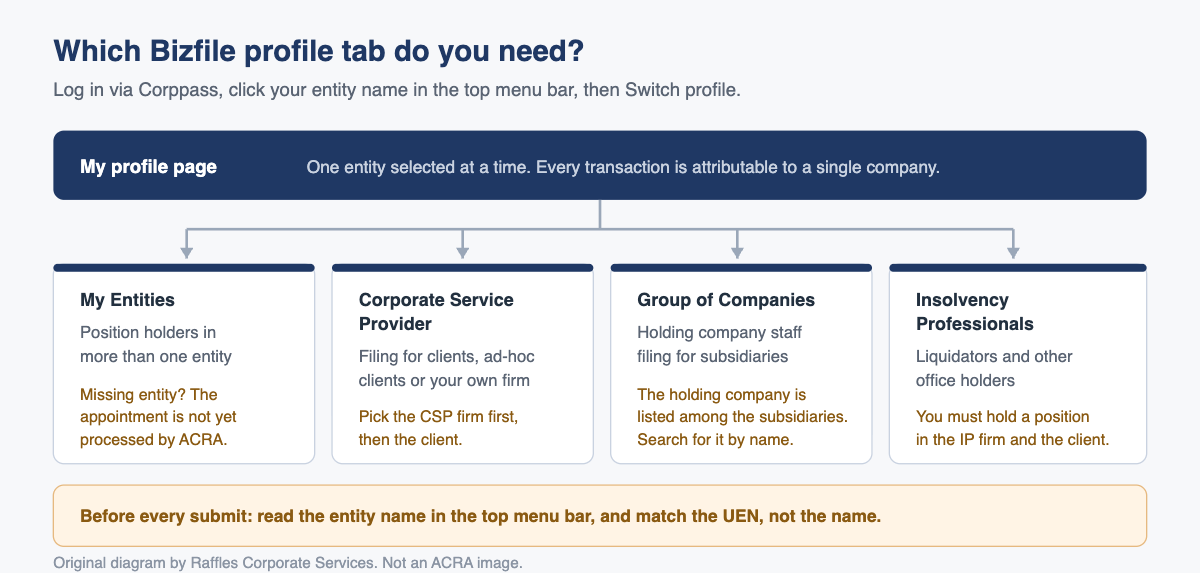
Four groups need it, and each gets a slightly different tab on the My profile page:
- Position holders in multiple entities. Directors, company secretaries, chief executive officers and shareholders who wear more than one hat. Your entities appear under My Entities.
- Corporate service providers. Firms filing on behalf of clients, on behalf of ad-hoc clients, or for the CSP firm itself. These sit under the Corporate Service Provider tab.
- Group of companies employees. Staff of a holding company who file for subsidiaries. These sit under the Group of Companies tab.
- Insolvency professionals. Liquidators and similar office holders filing for entities under their control, under the Insolvency Professionals tab.
Everything below assumes you have already logged in to Bizfile as a business user through Corppass. Profile switching is a business-user function. If Corppass access is the blocker, that is a separate exercise involving your company’s Corppass administrator, and our Corppass setup guide covers it.
How to switch profiles if you hold positions in several companies
- Log in to Bizfile through Corppass. You will land on an entity dashboard.
- Check the top menu bar. The entity you are currently acting for is named there, and again on the dashboard body.
- Click that entity name. A dropdown opens.
- Select Switch profile.
- On the My profile page, the My Entities tab lists every active entity you are authorised to file for.
- Select the entity you want. Use the search bar if the list is long.
- Confirm the top menu bar and dashboard now show the entity you selected. This is the step to make a habit of.
- Open the mega menu and choose your eService.
You do not need to log out at any point. You can switch as often as you like within a session.
One exception is worth knowing about before you start. If Bizfile refuses the transaction outright with a message that it cannot proceed, the problem is not your profile. It is an unverified email address, and the fix runs through Singpass rather than Corppass. Our note on verifying your email for Bizfile sets out the sequence.
How the four profile types compare
| Profile type | Tab on My profile | What you can file for | The usual snag |
|---|---|---|---|
| Position holder | My Entities | Any active entity where you hold a position | Entities pending endorsement do not appear |
| Corporate service provider | Corporate Service Provider | Client entities linked to your CSP firm, plus ad-hoc clients and the firm itself | You must pick the right CSP firm first if you belong to more than one |
| Group of companies | Group of Companies | Subsidiaries and the holding company itself | The holding company is listed alongside its subsidiaries, and is easy to scroll past |
| Insolvency professional | Insolvency Professionals | Entities linked to your IP firm | You must hold a position in both the IP firm and the client firm, so both should appear under My Entities too |
How a corporate service provider switches to a client
The CSP route has one extra step at the front, because you are declaring which firm you are acting through before you declare which client you are acting for.
- From the My profile page, click the Corporate Service Provider tab.
- Select your CSP firm from the dropdown, if you belong to more than one.
- Select the client entity you want. Search by name, or click the entity card directly.
- Confirm the top menu bar now shows that client.
- Choose your eService from the mega menu.
Filing for an ad-hoc client or for your own firm works slightly differently, because there is no existing client entity to select. Follow steps 1 and 2, then click Proceed to dashboard. From there you can transact for an ad-hoc client or on behalf of the CSP firm itself, which is the route used for things like applying for a new business entity name or registering a new entity.
Corporate service providers carry their own regulatory overlay when acting for clients, and the profile you file under is part of the audit trail. Our Corporate Service Providers Act 2024 compliance FAQ covers the wider obligations, and the common mistakes and rejection reasons piece covers where firms trip up.
Why is my entity missing from the list?
This is the most common support question, and there are only two real answers.
The appointment has not been processed by ACRA yet. You were appointed last Tuesday, the filing went in, and ACRA has not finished processing it. You are not authorised until it has.
The entity is pending endorsement. A subsidiary or client entity awaiting endorsement will not appear. Endorsement has to complete first.
Both are timing problems rather than access problems, and neither is fixed by logging out and in again. If an entity is still missing days after the underlying filing was accepted, that is worth checking against the actual register rather than assuming, which is what the free register download route in our guide to downloading your company registers from Bizfile is for.
The “Select a profile” pop-up
If you have not yet chosen an entity for the session, Bizfile prompts you with a profile selection pop-up. Close it and try to open the mega menu and it will prompt you again, because it will not let you into an eService without knowing who you are filing for. Once you have selected an entity, it stops appearing for the rest of that session.
Treat the pop-up as a feature. It is the system refusing to let you file into a vacuum.
What goes wrong: filing against the wrong entity
Here is the failure mode this feature exists to prevent, and it is worth understanding because the cleanup is disproportionate to the mistake.
A corporate secretary is working through a batch of resignations on a Friday afternoon. Client A and Client B have similar names. The secretary switches profile to Client A, files a director’s cessation, then goes straight into the next filing without switching. The second cessation lands on Client A as well.
Now there is a filing on the public register recording that a person ceased to be a director of a company they are, in fact, still a director of. That register entry is not a bookkeeping note. Under section 173 of the Companies Act 1967 the Registrar’s electronic register of directors, chief executive officers, secretaries and auditors is the register, and under section 196A the electronic register of members is the legal register of shareholdings for a private company. What ACRA holds is what is true until it is corrected.
The consequences run in three directions.
Correction is not a delete button. You cannot quietly reverse an accepted filing. Depending on what went in you are looking at a further filing to restore the position, or an application for rectification by the Registrar under section 12C of the Companies Act 1967, or in the awkward cases an application to court under section 12B. Section 12D lets the Registrar rectify on their own initiative, but that is not something you can rely on to fix your Friday afternoon.
Third parties may have already acted on it. Banks, counterparties and grant assessors pull entity information from the register. A wrongly recorded cessation can hold up a facility drawdown or a tender before anyone notices the error.
The clock does not stop. Filing against the wrong entity does not count as filing. The original obligation remains outstanding, and ACRA’s late lodgement penalties apply per late transaction.
The discipline that prevents it
Three habits, all free:
- Read the top menu bar before every submit, not before every session. The entity name is displayed there for exactly this reason. One glance, every filing.
- Never batch two filings for two entities in the same run without a deliberate switch in between. The moment of danger is the second filing, not the first.
- Match the UEN, not the name. Similar company names are extremely common in Singapore. The UEN is unique. If your working papers record the UEN, check the UEN.
That third habit is really a due diligence habit, and it applies well beyond your own filings. Our companion piece on using Bizfile’s search functions covers searching by UEN properly.
Filing for the holding company rather than a subsidiary
A specific trap for group finance teams. On the Group of Companies tab, the holding company is listed in the same set as its subsidiaries rather than being displayed separately above them. If you are scanning for it visually you can easily land on a subsidiary with a near-identical name.
The reliable method is to search for the holding company by name in the search bar on that tab and select it explicitly, then confirm the top menu bar before proceeding.
Frequently asked questions
Do I have to log out of Bizfile to file for a different company?
No. Click your entity name in the top menu bar, select Switch profile, and choose another entity from the My profile page. You can switch as many times as you like within one session. Logging out and back in achieves nothing that switching does not.
Why can I not see one of my client entities under My Entities?
Two reasons account for nearly all cases. Either your appointment has not been processed by ACRA yet, or the entity is still pending endorsement. Both are processing delays rather than access faults. Re-logging in will not accelerate either one.
I filed a transaction against the wrong company. Can I just delete it?
No. An accepted filing sits on the public register. Fixing it means a further filing to restore the correct position, or an application for rectification by the Registrar under section 12C of the Companies Act 1967, or a court application under section 12B in harder cases. Raise it with your corporate secretary immediately.
As a corporate service provider, how do I file for a client who is not on my client list?
Use the ad-hoc route. On the My profile page, open the Corporate Service Provider tab, select your CSP firm, then click Proceed to dashboard rather than selecting a client entity. From there you can transact for an ad-hoc client or for your own firm.
Why does the “Select a profile” pop-up keep appearing?
Because you have not yet chosen an entity for this session. Bizfile will re-prompt every time you try to reach the mega menu until you select one. It stops once you have made a selection, and does not reappear for the rest of that session.
Can I be authorised for two entities at the same time?
Not for the purpose of transacting. Bizfile is designed so that you act for one selected entity at any moment. That constraint is deliberate: it is what makes each submitted transaction unambiguously attributable to a single company.
When one person is filing for many companies
Profile switching is easy. Doing it correctly, forty times a week, on a Friday, is a process problem rather than a software problem. The firms that never misfile are the ones with a checklist, a UEN on every working paper, and a second pair of eyes on anything that changes a register.
Raffles Corporate Services files for several hundred Singapore entities and runs exactly that discipline. If you hold positions across a group, or you are a director who has quietly become the person who does the filings, we can take it off your desk entirely, or simply review what has already gone in.
You can reach us through Raffles Corporate Services, or read more on Singapore corporate secretarial practice at Singapore Secretary Services.
The Editorial Team, Raffles Corporate Services