

A registered corporate service provider grants and removes employee filing access itself, in Bizfile, through the “Manage filing access for registered qualified individuals and corporate service provider employees” eService. It is free, it is done by an authorised position holder or a registered qualified individual, and the removal half of it is the half that gets firms into trouble.
Raffles Corporate Services works with a panel of experienced Singapore law firms who offer cost-effective and efficient legal service and advice. This article is general information only and is not legal advice.
Filing access is the permission that lets a member of your staff push a transaction into ACRA’s system under your firm’s name. It is not a Corppass role and it is not an internal job title. It is a regulatory list of named individuals that ACRA can pull at any time and compare against the transactions actually filed.
That framing matters. Everything below follows from it.
What filing access actually is
Under the Corporate Service Providers Act 2024, a person cannot carry on a business of providing corporate services without registration. Section 7 of the Act sets out that prohibition, and section 8 covers registration of corporate service providers. Separately, section 10 provides for the registration of qualified individuals, the people who provide or supervise the provision of corporate services within a registered firm.
Your ordinary employees sit underneath that structure. They are not registered in their own right. They gain the ability to file because your firm has put them on the authorised list and because an RQI is supervising the work.
So the list is a supervision record as much as an access control. An employee with filing access can:
- File Bizfile transactions for your clients under your firm’s registration.
- Carry out tasks under the supervision of one of your RQIs, who must be employed, appointed or engaged by your CSP.
One useful design decision on ACRA’s side: you do not tag each employee to a particular RQI. The supervision obligation is real, but the system does not ask you to draw the reporting lines. That keeps the list workable for a firm with a dozen filers and three RQIs, and it means you do not have to refile the whole list every time someone changes team.
The two conditions you certify
Before you put anyone on the list, your firm has to be satisfied of two things:
- The employee is fit and proper. The fit and proper criteria sit in the subsidiary legislation made under the Act, and they are the same basic concepts that ACRA applies to registration decisions: honesty, integrity, reputation, and an absence of the kinds of convictions and regulatory findings that would make someone unsuitable to touch client filings.
- The employee is adequately trained on the law relating to the prevention of money laundering, terrorism financing and proliferation financing.
Neither of those is a tick box in Bizfile. Bizfile will not ask you for evidence. But Part 3 of the Act imposes duties and responsibilities on registered CSPs, including obligations directed at the prevention of money laundering, proliferation financing and terrorism financing under section 17, and an inspection will ask how you satisfied yourself before granting access. If the answer is that somebody in HR added the new joiner to Bizfile on day one and the AML training happened in month three, that gap is on your file, not theirs.
Keep a dated training record per person, and keep the fit and proper assessment that sat behind the decision. Our note on the Corporate Service Providers Act 2024 compliance FAQ covers the wider obligation set that this one sits inside.
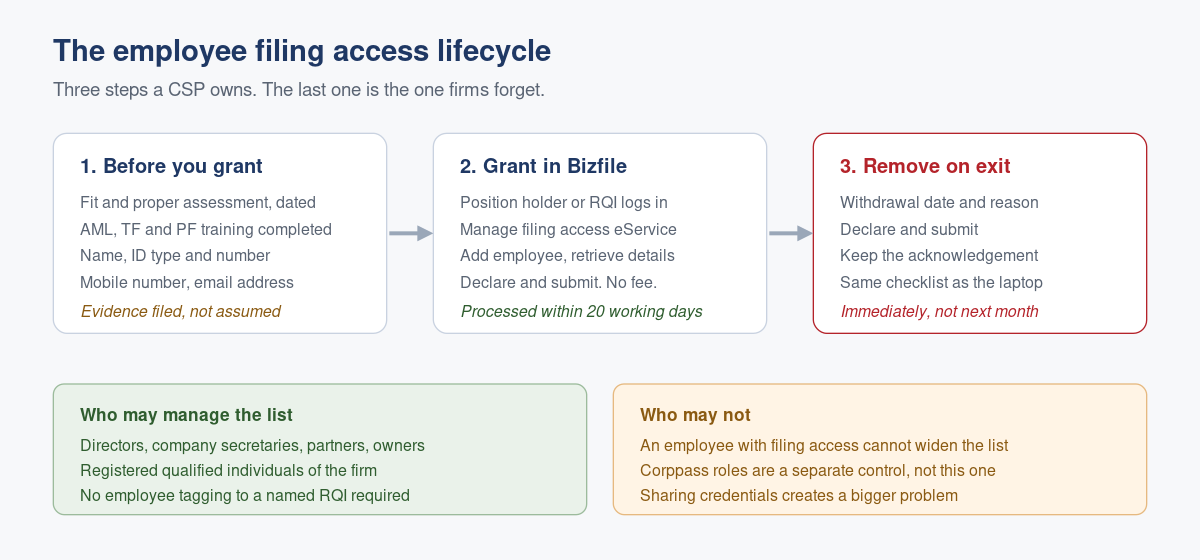
Who in your firm may manage the list
You must be either an authorised position holder of the CSP or an RQI. In practice that means:
| Role | Can manage employee filing access? | Notes |
|---|---|---|
| Director of the CSP | Yes | Selects the CSP firm under “My Entities” at login |
| Company secretary of the CSP | Yes | Same route as a director |
| Partner or owner (LLP, partnership, sole proprietorship) | Yes | Same route |
| Registered qualified individual | Yes | Logs in through the “Corporate Service Provider” tab and selects the firm |
| Employee with filing access | No | Can file for clients, cannot change the access list |
The last row is the one worth enforcing internally. Filing access lets a person act for your clients. It does not let them widen the circle of people who can act for your clients. That separation is the whole control, so do not quietly work around it by sharing a director’s credentials, which creates a far bigger problem than the one it solves.
RQIs reach the same screens by a slightly different path, because an RQI who serves more than one CSP firm has to choose which firm they are acting for before proceeding. If you have ever wondered why the employee list looked wrong, that is usually the reason. Our guide to switching profiles in Bizfile covers the same trap on the client-entity side.
What to have ready before you start
Four items per employee, and it is faster to collect them in one go than to chase them mid transaction:
- Full name as it appears on the identification document
- Identification type and number
- Mobile number
- Email address
The mobile number and email are not decoration. ACRA uses them to reach the individual, and a stale address on the authorised list is the kind of small inaccuracy that looks careless in an inspection. If any of the four changes later, you update rather than delete and re-add, which is the subject of our companion piece on updating CSP employees’ particulars.
There is no fee. Grants are processed within 20 working days, which surprises firms who expect an instant switch. Plan onboarding around that, not around the new joiner’s start date.
How to grant filing access, step by step
- Log in to Bizfile as a Business User using Corppass. If you have not set that up, do it first: see our walkthrough of the Business User login route.
- On the profile selection page, position holders choose the CSP firm under “My Entities”. RQIs choose the “Corporate Service Provider” tab, pick the firm from the drop-down list if they serve more than one, and proceed to the dashboard.
- Open the Manage filing access for RQIs and CSP employees eService. You can reach it from the dashboard shortcut for your RQIs and authorised employees, or from the “Manage” menu under the corporate service provider grouping.
- Select the option to appoint an RQI or add an employee, then choose “Employee” as the type. Adding an RQI is a different exercise with different criteria, so read the type selection rather than clicking through it.
- Choose the identification type, enter the identification number, and retrieve the individual’s details so the system populates what it already holds.
- Complete the contact fields, review the entry, make the declaration and submit.
- Keep the acknowledgement. It is your dated evidence of when access was granted, and it should live with the training record and the fit and proper assessment for that person.
How to remove filing access
- Find the person in your employee list. Search by name or identification number if the list is long.
- Select the delete action next to their entry.
- Enter the withdrawal date and the reason for withdrawal.
- Review the details, tick the declaration and submit.
- Keep the acknowledgement alongside the offboarding file.
The withdrawal date field is doing real work. It is the date your firm says the person stopped being authorised, and it is what an inspector will compare against the transaction log. Do not backdate it to tidy up a gap, and do not forward date it to buy a leaver a few extra days of access.
What goes wrong in practice
The leaver who is still on the list. This is the failure mode, and it is close to universal in firms that have not built removal into offboarding. Someone resigns, the laptop comes back, the email is disabled, and nobody opens Bizfile. The obligation is to remove filing access immediately when an employee leaves your firm. Until you do, a person with no employment relationship to your firm remains authorised to file transactions in your name for your clients. If anything is filed in that window, you own it.
The fix is procedural, not technical. Put the Bizfile withdrawal on the same checklist as the laptop and the building pass, give it a named owner who is a position holder or RQI, and have the acknowledgement filed as proof.
Granting access before the training is done. Covered above. A dated training record that postdates a dated access grant is a self inflicted finding.
Assuming Corppass covers it. Corppass controls who in your organisation can log in and use which e-services. It does not tell ACRA who is authorised to file as a CSP employee. The two lists drift apart constantly, because Corppass is usually maintained by IT and the CSP list by compliance. Reconcile them. Our note on assigning Corppass e-service roles safely explains the Corppass half.
Nobody reviews the list. Twelve months of joiners and leavers produces a list that nobody has read end to end. Export it and read it, which takes about ten minutes: see downloading lists of your RQIs and CSP employees.
Frequently asked questions
Do I need to assign each employee to a specific RQI in Bizfile?
No. The system does not ask you to tag employees to a named RQI. The supervision requirement still applies, and your RQI must be employed, appointed or engaged by your CSP, but you manage the reporting lines internally rather than in the filing.
How long does it take for a new employee to be able to file?
Grants are processed within 20 working days. Treat that as part of the onboarding timeline rather than a same day switch, particularly if you are hiring ahead of a busy filing season.
What happens if an ex-employee files something after leaving?
The transaction was filed under your firm’s registration, so your firm answers for it. Providing false information to the Registrar is an offence under section 25 of the Corporate Service Providers Act 2024, and the failure to withdraw access is itself a supervision failing. Remove access on the last working day.
Can an employee with filing access add another employee?
No. Only an authorised position holder, such as a director, company secretary, partner or owner, or an RQI of the firm may manage the access list. That separation of duties is deliberate, so do not defeat it by sharing credentials.
Is there a fee for adding or removing an employee?
No. Both the grant and the withdrawal are free. The only cost is the time, and the only real risk is forgetting the withdrawal.
We are an accounting entity treated as a registered CSP. Does this apply to us?
Yes, if you are filing for clients through Bizfile. Deemed registered corporate service providers and their key appointment holders sit inside the same framework under the Act, and the employee list works the same way.
Keeping the list clean without thinking about it
The employee access list is a small thing that quietly becomes a compliance problem. It only takes one leaver, one unreviewed year, and one inspection.
We run this discipline for our own filings: named owner, removal on the last working day, a dated export reviewed each quarter against the payroll, and the training record filed with the access grant. If you are a CSP building that routine, or a company wondering whether your provider has one, it is a short conversation. Raffles Corporate Services is itself a registered corporate service provider and we are happy to compare notes.
You can read more on Singapore corporate secretarial practice at Singapore Secretary Services, and the Act itself is on Singapore Statutes Online.
The Editorial Team, Raffles Corporate Services
Need help with corporate secretarial or compliance matters?
If you would like help with your company's corporate secretarial, governance or compliance requirements, email [email protected] or WhatsApp +65 8501 7133.
Our team can assist with corporate secretarial, accounting and tax matters. Where legal advice is needed, advisers from our associated law firms can assist.